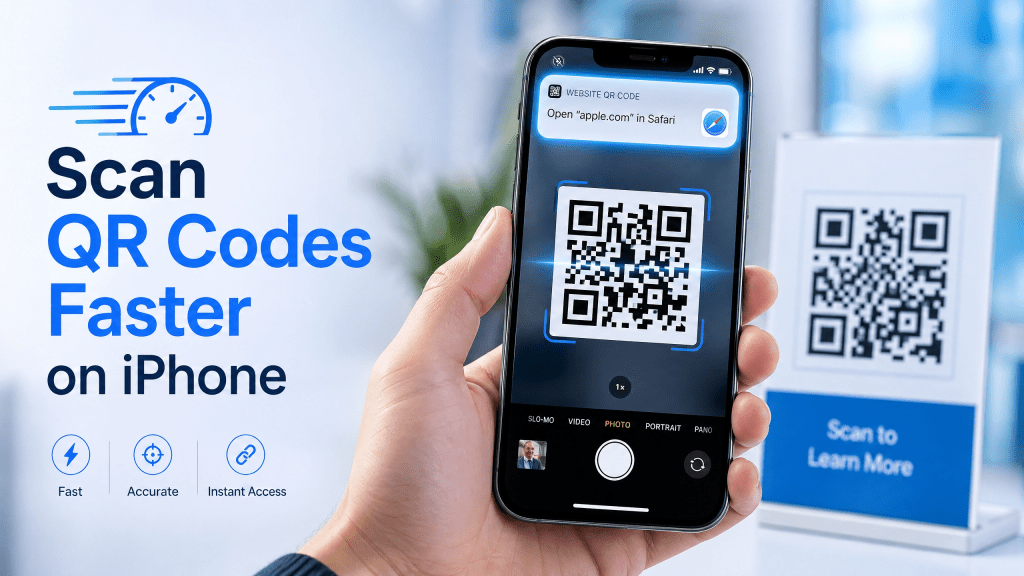
QR codes are meant to make things faster—but sometimes, scanning them on your iPhone feels slower than expected. I wonder if you guys feel the same way… you point your camera at a code, wait a second, and wonder why it didn’t instantly respond.
The good news is that your iPhone is already optimized for QR scanning—you just need to use it the right way. In this guide, we’ll show you how to scan QR iOS camera faster and improve your overall iPhone QR experience.
Why Use the iOS Camera App?
Your iPhone already includes a built-in QR scanner inside the Camera app.
Advantages:
- No need to install extra apps
- Fast and reliable
- Works instantly from lock screen
For most users, this is the simplest way to handle scan QR iOS camera tasks.
Step 1: Open Camera Instantly
Speed starts with access.
Quick ways:
- Swipe left from the lock screen
- Use Control Center
- Tap Camera icon directly
The faster you open the camera, the faster you can scan.
Step 2: Position the QR Code Correctly
Proper positioning makes a huge difference.
Tips:
- Keep the QR code centered
- Avoid cutting off edges
- Hold your phone straight
This helps your iPhone QR scanner detect codes almost instantly.
Step 3: Maintain the Right Distance
Distance affects focus and speed.
Best range:
- About 6–12 inches away
- Let the camera auto-focus
Too close or too far can slow detection.
Step 4: Improve Lighting Conditions
Lighting is one of the biggest factors in scanning speed.
Tips:
- Use bright environments
- Avoid glare or reflections
- Turn on flash if needed
For more detailed techniques, check this guide on how to scan QR codes in low light conditions.
Step 5: Hold Your Phone Steady
Movement can delay recognition.
Fix:
- Keep your hands steady
- Pause for a second
A stable image helps the scan QR iOS camera process complete faster.
Step 6: Wait for the Notification Banner
QR scanning is automatic, but you still need to tap the result.
What happens:
- A notification appears at the top
- Tap it to open the link
Don’t move away too quickly before it appears.
Step 7: Make Sure QR Scanning Is Enabled
Sometimes the feature is disabled.
Check:
- Go to Settings → Camera
- Enable “Scan QR Codes”
Without this, your iPhone won’t recognize QR codes.
Step 8: Use a Dedicated Tool for Better Speed
While the Camera app works well, some users prefer extra features.
You can explore tools like a QR code scanner for iPhone if you want faster recognition, history tracking, or improved accuracy.
Common Mistakes That Slow Down Scanning
Too Close to the Code
Prevents proper focus.
Poor Lighting
Reduces clarity and contrast.
Shaky Hands
Causes blurry detection.
Low-Quality QR Codes
Harder to scan quickly.
Avoiding these improves your iPhone QR experience instantly.
Best Practices for Faster QR Scanning
Keep Your Lens Clean
Even small smudges affect performance.
Use Good Lighting
Brightness improves detection speed.
Center the Code
Helps the camera lock on faster.
Stay Still
Give the camera a moment to process.
When Should You Use QR Scanning?
Everyday Tasks:
- Open websites
- Download apps
- Access menus
Work & Events:
- Check-ins
- Share documents
- Quick connections
QR codes are now part of daily life, and speed matters.
iOS Camera vs QR Scanner Apps
| Feature | iOS Camera | QR App |
|---|---|---|
| Speed | Fast | Faster (optimized) |
| Ease of Use | High | High |
| Features | Basic | Advanced |
Both are useful depending on your needs.
Final Thoughts
Scanning QR codes on iPhone doesn’t have to be slow. With the right techniques, you can make the scan QR iOS camera process almost instant.
By improving positioning, lighting, and stability, your iPhone QR experience becomes smooth, fast, and reliable.
A Smarter Way to Scan QR Codes
If you scan QR codes frequently, using a dedicated app can enhance your workflow. It offers faster detection, better accuracy, and useful features like scan history.
You might find it helpful to explore a solution like a QR scanner app for iPhone, especially if you want a more efficient and seamless experience.


Leave a comment