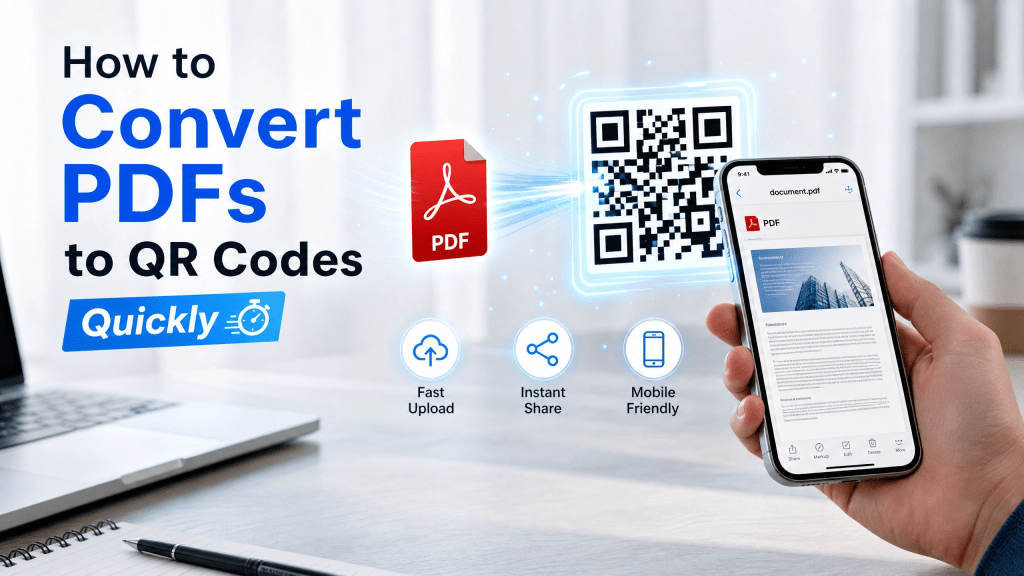
Sharing PDF files used to mean sending email attachments, uploading files to cloud storage, or copying long download links. Today, there’s a much faster solution: converting documents into QR codes.
With a simple PDF to QR workflow, users can instantly share documents by allowing others to scan a QR code using their smartphone camera. This has become especially popular for businesses, schools, restaurants, conferences, and digital creators.
In this guide, we’ll explain how to convert PDFs into QR codes quickly and how to improve the experience using a reliable iPhone QR scanner.
How PDF to QR Conversion Works
Most QR systems do not store the PDF directly inside the code.
Instead, the process works like this:
- Upload the PDF online
- Generate a shareable file link
- Convert the link into a QR code
- Share the QR image
When someone scans the QR code, the PDF opens automatically on their device.
Why Convert PDFs into QR Codes?
QR codes simplify document sharing dramatically.
Instead of:
- Sending large attachments
- Copying long URLs
- Managing multiple download links
You can simply display one QR code that instantly opens the PDF file.
This approach is useful for:
- Restaurant menus
- Event brochures
- Product manuals
- School assignments
- Business presentations
- Marketing materials
QR-based document sharing is fast, mobile-friendly, and convenient.
Benefits of Using QR Codes for PDFs
Using PDF to QR sharing provides several advantages:
1. Faster Access
Users can open documents instantly without typing URLs.
2. Mobile-Friendly Experience
QR scanning works naturally on smartphones.
3. Easier Offline Sharing
Printed QR codes still provide digital access.
4. Cleaner Communication
No need to send large email attachments repeatedly.
5. Better User Engagement
QR codes improve convenience and accessibility.
Step-by-Step: Convert PDFs into QR Codes
The process is very simple.
Step 1: Upload Your PDF
Use cloud storage or a document hosting platform.
Step 2: Copy the Shareable Link
Ensure public or permission-based access is configured correctly.
Step 3: Generate the QR Code
Paste the link into a QR generator.
Step 4: Download the QR Image
Save it in high resolution for easier scanning.
Step 5: Test the QR Code
Always scan it before sharing publicly.
Why QR Codes Work Well for Businesses
Businesses increasingly use PDF QR codes because they simplify customer interactions.
Popular use cases include:
- Product instructions
- Restaurant menus
- Digital catalogs
- Event schedules
- Real estate brochures
Instead of printing large documents, businesses can distribute a single QR code.
Improve Scanning with a Better QR Tool
Not all QR scanning apps perform equally.
I tried a few different QR code scanner apps, and the results were surprisingly different.
Some scanners recognized PDF QR codes instantly, while others struggled with blurry images or slow autofocus. A reliable scanner improves speed and usability significantly.
If you want a simple mobile scanning solution, you can explore:
Scan QR Reader Tool
Optimize PDFs Before Converting
Large PDF files can slow loading speeds after scanning.
Before generating a QR code:
- Compress oversized PDFs
- Remove unnecessary pages
- Optimize images inside the document
- Use mobile-friendly formatting
Smaller files create a smoother experience for users.
Create Better QR Codes for Documents
A well-designed QR code scans faster and more reliably.
Best practices include:
- Use high contrast colors
- Keep sufficient white spacing around the code
- Avoid tiny QR images
- Export in high resolution
Poor QR quality is one of the main reasons scanning fails.
Document QR Codes for Education
Schools and educators increasingly use PDF QR systems for:
- Homework assignments
- Lecture notes
- Study guides
- Research papers
Students can instantly access learning materials from their phones.
Document QR Codes for Events
Events also benefit from QR-based PDF sharing.
Examples include:
- Conference agendas
- Digital tickets
- Venue maps
- Presentation downloads
QR access eliminates the need for printed packets.
Easier Document Sharing Across Devices
QR codes work well across different platforms:
- iPhone to Android
- Mobile to desktop
- Tablet to laptop
This makes them highly flexible for file distribution.
If you want additional strategies for document QR workflows, this guide is useful:
Convert Documents to QR Codes Easily
Security Considerations
When sharing PDFs through QR codes:
- Avoid exposing sensitive documents publicly
- Use secure cloud storage links
- Verify permissions before sharing
- Remove expired documents when necessary
Security matters, especially for business and legal files.
Common Mistakes to Avoid
Many users unintentionally create QR problems by:
- Uploading huge PDFs
- Using blurry QR images
- Sharing expired links
- Forgetting mobile optimization
- Not testing the QR before distribution
Avoiding these issues improves user experience significantly.
Future of PDF QR Sharing
QR technology continues evolving quickly.
Future improvements may include:
- Dynamic editable QR documents
- AI-enhanced QR scanning
- Faster offline access
- Encrypted document QR systems
- Real-time analytics tracking
This will make document sharing even more efficient.
Final Thoughts
Using PDF to QR systems is one of the fastest and easiest ways to share digital documents today. Instead of relying on email attachments or long links, QR codes create instant mobile access with a simple scan.
Combined with a reliable iPhone QR scanner, this workflow improves convenience, speed, and accessibility across devices.
Whether you are sharing business documents, educational materials, or event information, QR-powered PDF distribution is becoming an essential part of modern digital communication.
Download the App
Want a faster QR scanning experience on iPhone?


Leave a comment