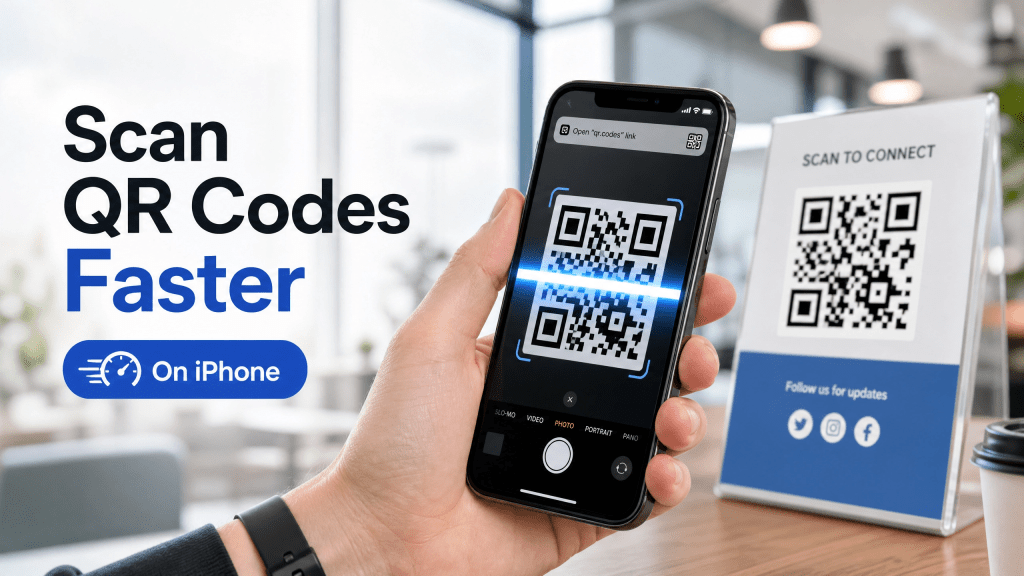
QR codes have become part of everyday life. People use them for payments, restaurant menus, event check-ins, app downloads, file sharing, WiFi connections, and much more. While iPhones already include built-in QR scanning support, many users still experience slow detection, blurry scans, or inconsistent performance.
The good news is that QR scanning speed can be improved significantly with a few simple adjustments.
In this guide, you’ll learn practical tips to make your QR scanner iPhone workflow faster, smoother, and more reliable.
Use the Built-In iPhone Camera
The easiest way to scan QR codes on iPhone is through the native Camera app.
Modern iPhones automatically recognize QR codes without requiring additional setup.
To use it:
- Open Camera
- Point at QR code
- Wait for notification banner
- Tap the link
For many users, this is already fast enough.
Make Sure QR Scanning Is Enabled
Some users accidentally disable QR scanning.
To check:
- Open Settings
- Tap Camera
- Enable Scan QR Codes
Without this setting, the camera won’t detect QR codes properly.
Improve Lighting Conditions
Lighting is one of the biggest factors affecting scanning speed.
Poor lighting causes:
- Slow focus
- Blurry detection
- Recognition failure
For faster scans:
- Use bright environments
- Avoid shadows
- Reduce screen glare
- Keep QR codes well lit
Balanced lighting dramatically improves detection speed.
Why QR Scanning Speed Matters
Fast QR scanning improves the user experience in many situations:
- Making payments quickly
- Opening websites instantly
- Checking into events faster
- Accessing files efficiently
- Sharing information smoothly
Even small delays can become frustrating when scanning QR codes multiple times per day.
Hold Your Phone Steady
Shaky movement slows down autofocus and QR recognition.
For best results:
- Hold phone still for 1–2 seconds
- Keep QR code centered
- Avoid scanning while walking
Modern iPhone cameras process QR codes extremely quickly when stable.
Clean Your Camera Lens
Many scanning problems are caused by dirty camera lenses.
Dust or fingerprints reduce image clarity and slow detection.
Quick fix:
- Use microfiber cloth
- Clean rear camera gently
- Avoid rough materials
This simple step often improves scanning immediately.
Avoid Tiny QR Codes
Very small QR codes are harder for the camera to process.
If possible:
- Zoom slightly
- Move closer
- Use higher-resolution QR images
Larger QR codes scan faster and more reliably.
Use High-Quality QR Codes
Not all QR codes are created properly.
Low-quality QR images may have:
- Blurry edges
- Poor contrast
- Damaged patterns
This slows scanning significantly.
Well-designed QR codes scan almost instantly.
Dedicated QR Scanner Apps
While the iPhone camera works well, dedicated QR apps may provide:
- Faster scanning
- Scan history
- Better low-light recognition
- Security previews
- Offline scanning support
However, simplicity matters.
In my experience, a simple and fast QR scanner is way better than one with too many features.
Some lightweight tools focus entirely on speed and reliability instead of adding unnecessary functions.
For example, simple QR scanner tools focus on quick and straightforward QR workflows for iPhone users.
Disable Battery Saver Mode
Low Power Mode can sometimes reduce camera responsiveness.
If scanning feels slow:
- Disable Low Power Mode temporarily
- Close unused background apps
This may improve camera performance slightly.
Update iOS Regularly
Apple frequently improves camera processing and QR recognition through iOS updates.
To update:
- Open Settings
- Tap General
- Select Software Update
Keeping iOS updated improves overall camera stability and scanning performance.
Internet Speed Also Matters
Many QR codes open websites or cloud files.
Even if scanning is fast, slow internet can delay loading.
If QR links open slowly:
- Check WiFi connection
- Test mobile data speed
- Avoid overloaded public networks
Sometimes the scanner is fast, but the website is slow.
QR Safety Is Important
As QR codes become more common, malicious QR scams are also increasing.
Users should avoid:
- Random QR stickers
- Unknown payment codes
- Suspicious shortened URLs
Always preview QR links before opening them.
This guide on QR code safety tips for iPhone users explains how to identify dangerous QR codes and protect your privacy while scanning.
Common QR Scanning Problems
Camera Won’t Detect QR
Usually caused by poor lighting or disabled settings.
QR Scans Slowly
Often related to blurry focus or dirty lenses.
QR Opens Wrong Link
The QR code itself may be incorrectly generated.
Scanner Freezes
Sometimes caused by overloaded third-party apps.
Best Practices for Faster QR Workflows
To consistently scan QR code fast:
- Use bright lighting
- Keep camera steady
- Clean the lens regularly
- Avoid low-quality QR images
- Use simple scanning apps
- Keep iOS updated
These small improvements make a noticeable difference.
Future of QR Scanning on iPhone
QR technology continues evolving rapidly.
Future iPhone improvements may include:
- AI-powered QR detection
- Faster autofocus systems
- Better low-light scanning
- Enhanced QR security checks
- Multi-code simultaneous scanning
QR scanning will likely become even more seamless over time.
Final Thoughts
Learning how to improve QR scanning speed on iPhone is surprisingly easy. Most issues are caused by lighting, camera cleanliness, or poor QR quality rather than the phone itself.
By following a few simple tips, users can make their QR scanner iPhone experience much faster and more reliable.
If you want a lightweight and simple scanning experience, you can also try this iPhone QR scanner app: iPhone QR Scanner App


Leave a comment