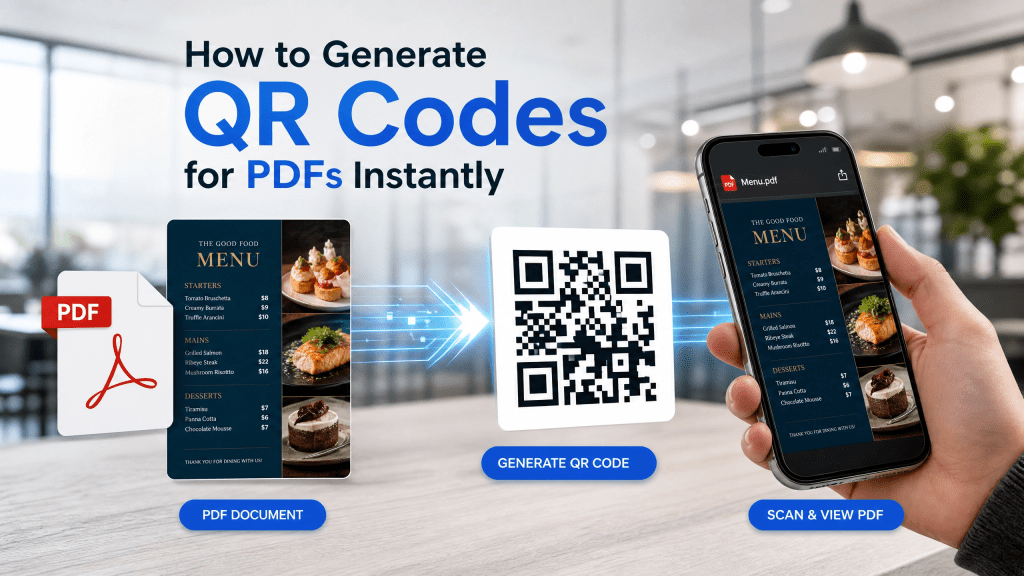
QR codes have become one of the fastest ways to share documents online. Instead of sending long links or large email attachments, users can simply scan a QR code and open a PDF instantly on their phone, tablet, or computer.
Today, businesses, teachers, event organizers, and remote teams all use QR-based PDF sharing because it’s simple, fast, and mobile-friendly. Whether you’re sharing a presentation, restaurant menu, brochure, guide, or contract, generating a QR code for a PDF only takes a few seconds.
In this guide, we’ll explain how to generate QR PDF links instantly, the best tools to use, and how to improve scanning reliability for a smoother experience.
What is a PDF QR code?
A PDF QR code is a QR code linked directly to a PDF document.
When scanned:
- The PDF opens automatically
- Users can view, download, or save the file
- No typing or searching is required
This makes PDF QR systems perfect for mobile users.
Why use QR codes for PDFs?
Traditional file sharing methods can be frustrating.
Common problems include:
- Long URLs
- Email attachment limits
- Slow downloads
- File compatibility issues
- Repeated manual sharing
QR codes simplify the process dramatically.
Instead of:
- Sending a link
- Asking users to open messages
- Downloading files manually
Users simply scan once and access the PDF immediately.
Common use cases for PDF QR codes
Business documents
Contracts, reports, and brochures.
Restaurant menus
Digital menus reduce printing costs.
Education
Teachers share notes and assignments instantly.
Events
Conference schedules and guides.
Marketing materials
Catalogs, product sheets, and flyers.
Real estate
Property brochures and floor plans.
How to generate QR codes for PDFs instantly
The process is simple.
Step 1: Upload the PDF
Store the PDF on:
- Google Drive
- Dropbox
- OneDrive
- Website hosting
- Cloud storage platform
Step 2: Copy the file link
Generate a public or shareable URL.
Step 3: Use a QR generator
Paste the link into a QR code generator.
Step 4: Generate QR code
The tool creates the QR image instantly.
Step 5: Test before sharing
Always verify:
- Scan speed
- Link functionality
- Mobile compatibility
Static vs dynamic PDF QR codes
Static QR codes
- Permanent link
- Cannot edit later
- Simple and free
Dynamic QR codes
- Editable destination
- Supports analytics
- Better for long-term sharing
Businesses often prefer dynamic QR systems because they allow updates without changing the QR image.
Why scan speed matters
Fast scanning is extremely important for good user experience.
One thing that really annoyed me was how slow some apps are at recognizing codes.
A slow scanner creates frustration, especially during meetings, classrooms, or business presentations where multiple users need quick access.
Best practices for generating PDF QR codes
Keep the QR design simple
Overdesigned QR codes sometimes scan poorly.
Use high contrast
Dark QR code on light background works best.
Avoid tiny QR codes
Small codes become difficult to scan.
Compress large PDFs
Large files may load slowly on mobile devices.
Optimize for smartphones
Most users will scan using phones.
Choosing the right PDF hosting platform
Reliable hosting is important because broken links make QR codes useless.
Good hosting platforms should provide:
- Stable file access
- Fast loading speeds
- Mobile optimization
- Secure sharing controls
QR code size recommendations
The larger the QR code, the easier it scans.
Suggested minimum sizes:
- Business cards: 2 x 2 cm
- Flyers: 3 x 3 cm
- Posters: larger for distance scanning
Always test visibility from expected scanning distance.
Security considerations
When sharing PDFs through QR codes:
Avoid:
- Public access to sensitive files
- Unsecured hosting services
- Unknown redirect systems
Recommended:
- Use trusted cloud providers
- Apply permissions when needed
- Monitor file access
This is especially important for business or legal documents.
Why businesses use instant QR PDF workflows
Businesses increasingly rely on QR systems because they:
- Save time
- Reduce printing costs
- Improve accessibility
- Simplify customer interactions
- Support mobile workflows
Modern customers expect instant digital access.
PDF QR workflows for iPhone users
iPhone users can create PDF QR codes quickly using:
- Cloud storage apps
- QR generator tools
- Built-in sharing systems
- Mobile document scanners
This creates a fast mobile-first workflow for document distribution.
Improving QR scanning reliability
To improve scan performance:
- Use clear lighting
- Avoid blurry prints
- Clean phone camera lens
- Test on multiple devices
- Avoid reflective surfaces
Reliable scanning dramatically improves user experience.
PDF sharing strategies
Many organizations now combine:
- Cloud storage
- Dynamic QR systems
- Mobile document workflows
- Instant sharing tools
This guide explains practical strategies for improving PDF-based QR workflows: best practices for sharing PDFs via QR codes.
Useful QR tools for daily workflows
Many users also rely on lightweight QR tools for:
- Fast scanning
- Link management
- File sharing
- QR history tracking
- Mobile productivity
Some platforms focus on simpler scanning experiences instead of overloaded features: simple QR scanner tools.
Future of PDF QR systems
QR workflows continue evolving with:
- AI-powered document sharing
- Dynamic content updates
- Offline QR access
- Secure encrypted QR systems
- Mobile collaboration tools
As mobile productivity grows, QR-based PDF sharing will likely become even more common.
Final thoughts
Learning how to generate QR PDF links instantly is one of the easiest ways to improve digital file sharing. Whether you’re distributing business documents, educational resources, menus, or presentations, QR systems simplify access and improve convenience.
Fast-loading PDFs, clean QR design, and reliable scanning tools all contribute to a smoother user experience.
For users exploring lightweight mobile scanning workflows, there are also iPhone apps designed specifically for quick QR access and document sharing: iPhone QR scanner app


Leave a comment