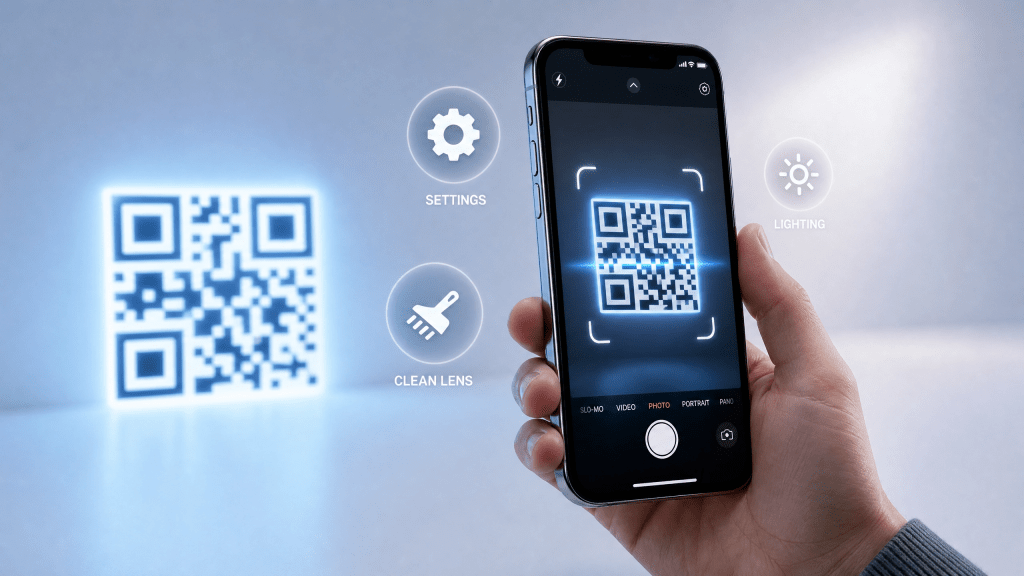
QR codes are meant to make life easier—but when they don’t work, the frustration can be real. Whether your camera won’t recognize codes or links fail to open, understanding QR scanner troubleshooting on your iPhone can save you time and headaches.
In this guide, we’ll walk through the most common problems iPhone users face when scanning QR codes and how to fix them step by step.
Why QR Codes Sometimes Don’t Work
Before jumping into solutions, it’s helpful to understand why issues happen in the first place. QR scanning problems usually fall into three categories:
- Camera-related issues
- Software or settings problems
- QR code quality or compatibility issues
The good news? Most of these can be fixed in just a few minutes.
Basic Fixes You Should Try First
Let’s start with the simplest solutions. You’d be surprised how often these work.
9. Use a Dedicated Scanner App
While the built-in camera works well, third-party apps can offer better performance and additional features.
If you’re exploring options, check this resource:
👉 QR scanner troubleshooting and reliable iPhone scanning solutions
A dedicated app may improve detection speed and accuracy, especially for complex QR codes.
Learn the Correct Scanning Method
Sometimes the issue is simply how the QR code is being scanned. If you want a quick refresher, this guide explains the process clearly:
👉 how to scan QR codes quickly in iOS camera app
Following the correct steps ensures consistent results.
1. Clean Your Camera Lens
A dirty or smudged lens can prevent your iPhone from recognizing QR codes.
- Use a soft cloth to clean the lens
- Avoid fingerprints or dust buildup
Even a small smudge can interfere with scanning accuracy.
2. Adjust Distance and Angle
If your QR code isn’t scanning:
- Move your phone slightly closer or farther
- Hold steady for a few seconds
- Avoid extreme angles
QR recognition depends heavily on positioning.
3. Improve Lighting Conditions
Low light or glare can make QR codes difficult to detect.
- Move to a brighter area
- Avoid direct reflections
- Use natural lighting when possible
Check Your iPhone Settings
Sometimes the issue isn’t physical—it’s in your settings.
4. Enable QR Code Scanning
Make sure scanning is turned on:
- Go to Settings → Camera
- Enable “Scan QR Codes”
If this is off, your camera won’t recognize QR codes at all.
5. Restart Your iPhone
A quick restart can fix temporary glitches.
- Turn your iPhone off
- Wait a few seconds
- Turn it back on
Simple, but often effective.
6. Update iOS
Outdated software can cause compatibility issues.
- Go to Settings → General → Software Update
- Install the latest version
Updates often include bug fixes for camera and scanning features.
Advanced Troubleshooting Tips
If the basics don’t solve your problem, try these more advanced solutions.
7. Test with Another QR Code
Not all QR codes are created equal.
- Try scanning a different code
- If it works, the original code may be damaged or invalid
This helps you identify whether the issue is with your device or the code itself.
8. Scan from Photos Instead
If you have a saved image:
- Open it in the Photos app
- Tap and hold the QR code
This method bypasses camera issues entirely.
Common QR Code Problems (and Fixes)
Blurry or Low-Quality Codes
- Use a higher-resolution image
- Avoid compressed or pixelated codes
Broken or Expired Links
- The QR code may point to a deleted or outdated page
- Try accessing the link manually if visible
Codes That Require Specific Apps
Some QR codes are designed for specific apps and may not work with the default camera.
- Install the required app if necessary
- Or use a more versatile scanner
Real-Life Experience
Thank goodness I chose this one back then; otherwise, I would have been in a real bind. I once needed to scan an important QR code for a document submission, and my camera wasn’t recognizing it. After trying a dedicated scanner app, it worked instantly.
That experience taught me the importance of having a backup solution.
Best Practices to Avoid Future Issues
To keep your QR scanning experience smooth:
- Keep your iPhone updated
- Use good lighting when scanning
- Test QR codes before sharing
- Use reliable tools and apps
Consistency in these habits reduces the chances of running into problems.
When to Consider Alternative Solutions
If QR scanning continues to fail:
- Try another device
- Use manual links instead
- Contact the provider of the QR code
Sometimes the issue is beyond your control.
Final Thoughts
QR codes are designed to simplify tasks, but when they fail, they can slow you down. With this QR scanner troubleshooting guide, you now have the tools to quickly diagnose and fix most issues on your iPhone.
Whether it’s a simple lens cleaning or switching to a better app, small adjustments can make a big difference.
Download a Reliable QR Scanner App
If you’re looking for a dependable solution to avoid scanning issues altogether, consider trying a dedicated app:
👉 Download QR Scanner App for iPhone
A high-quality app can enhance speed, improve accuracy, and give you a smoother overall experience.
With the right approach, QR scanning becomes effortless—and once it works consistently, you’ll rely on it more than ever.


Leave a comment