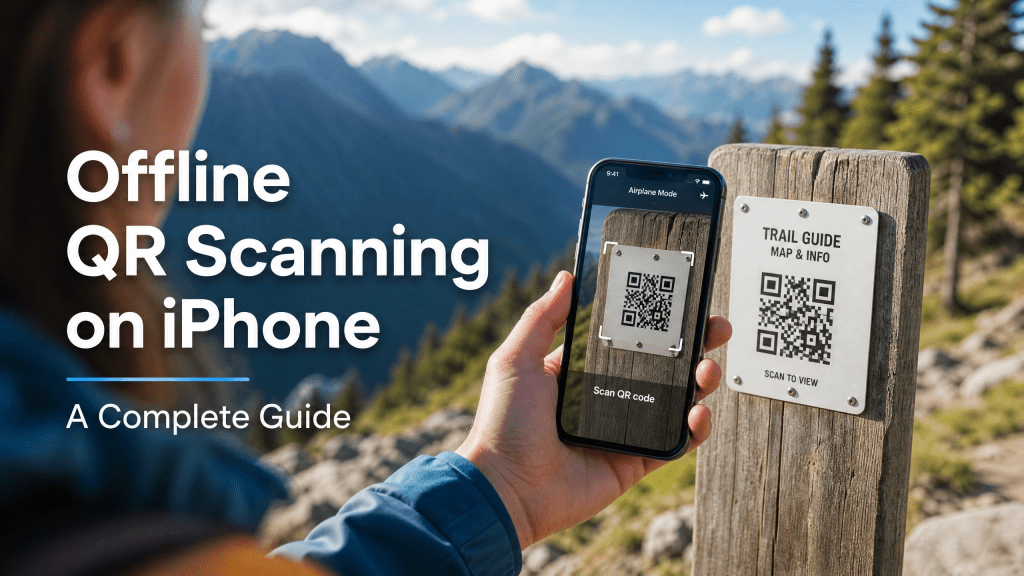
QR codes are often associated with instant online access—websites, downloads, or cloud-based content. But what happens when you don’t have an internet connection? Whether you’re traveling, in a low-signal area, or trying to save data, knowing how to perform an offline QR scan on your iPhone can be incredibly useful.
In this guide, we’ll walk you through exactly how offline QR scanning works, when it’s possible, and how to do it step by step using your iPhone QR tools.
Can You Scan QR Codes Offline?
The short answer: yes—but with limitations.
An iPhone QR scanner can still read the data stored in a QR code without internet access. However, whether the result works depends on what the QR code contains.
QR Codes That Work Offline
- Plain text
- Contact information (vCard)
- WiFi credentials
- Preloaded app actions
QR Codes That Require Internet
- Website links
- File downloads
- Cloud-based content
So while you can scan almost any QR code offline, you may not be able to fully use the result until you reconnect.
Step-by-Step: How to Scan QR Codes Offline on iPhone
Let’s go through the exact process.
Step 1: Open Your Camera App
Your iPhone’s built-in camera is capable of scanning QR codes even without internet.
- Launch the Camera app
- Point it at the QR code
The code will still be recognized instantly.
Why Offline QR Scanning Matters
Offline scanning is more useful than most people realize.
Common Scenarios
- Traveling abroad with limited data
- Airplane mode usage
- Remote locations with poor signal
- Events with unstable WiFi
In these situations, being able to scan first and act later is a major advantage.
Step 2: Capture the QR Code
If the QR code contains a link, your iPhone will display a notification—but tapping it may not work offline.
Instead:
- Take a screenshot of the QR code
- Or save the image for later
This allows you to access it once you’re back online.
Step 3: Use Photos for Offline Interaction
For QR codes containing text or contact info:
- Open the image in Photos
- Tap and hold the QR code
You may still be able to extract usable data without needing internet.
Step 4: Use a Dedicated QR Scanner App
Some apps are designed to handle offline QR scan scenarios more effectively.
If you’re looking for a reliable tool, check this resource:
👉 offline QR scan and reliable iPhone QR tools
These apps can store scan history and allow you to access results later when you’re back online.
Learn the Right Scanning Technique
Even offline, proper scanning technique matters. If you need a quick refresher, this guide can help:
👉 how to troubleshoot iPhone QR scanner issues
Understanding how scanning works ensures better accuracy in any condition.
Tips to Improve Offline QR Scanning
1. Save QR Codes for Later
If you can’t access the content immediately:
- Take a screenshot
- Bookmark the code
- Store it in your Photos
This ensures you don’t lose access.
2. Use Airplane Mode for Testing
Want to simulate offline conditions?
- Turn on Airplane Mode
- Try scanning different QR codes
This helps you understand what works without internet.
3. Organize Your Scan History
Some QR apps keep a history of scanned codes. This is extremely useful when working offline.
- Review past scans
- Open them later when connected
Common Problems and Solutions
QR Code Scans but Doesn’t Open
This usually means the code requires internet.
Solution: Save it and open later.
No Response After Scanning
- Ensure the camera detects the code properly
- Adjust lighting and distance
Lost QR Code Access
If you didn’t save it:
- Try scanning again
- Ask for the code to be resent
Real-Life Experience
Thank goodness I chose this one back then; otherwise, I would have been in a real bind. I once needed to access important information from a QR code while traveling without internet. Luckily, I had saved the code earlier and was able to open it later when I got connected.
That small habit made a big difference.
Best Use Cases for Offline QR Scanning
Travel
Scan tickets, hotel details, or guides even without connectivity.
Events
Capture schedules or resources to view later.
Work Environments
Access internal data stored in QR codes without relying on networks.
Limitations You Should Know
While offline QR scanning is useful, it’s not perfect.
- Links won’t open without internet
- Some features depend on apps
- Real-time actions may not work
Understanding these limitations helps you use QR codes more effectively.
Final Thoughts
Learning how to perform an offline QR scan on your iPhone adds flexibility to your daily workflow. Whether you’re dealing with limited connectivity or simply planning ahead, offline scanning ensures you never miss important information.
By combining the built-in iPhone QR features with the right tools and habits, you can scan anytime, anywhere—no internet required.
Download a Reliable QR Scanner App
To enhance your offline scanning experience, consider using a dedicated app:
👉 Download QR Scanner App for iPhone
A good app can store scans, improve recognition, and make offline access much more convenient.
Once you get used to offline QR scanning, it becomes a powerful tool you’ll rely on more often than you expect.


Leave a comment