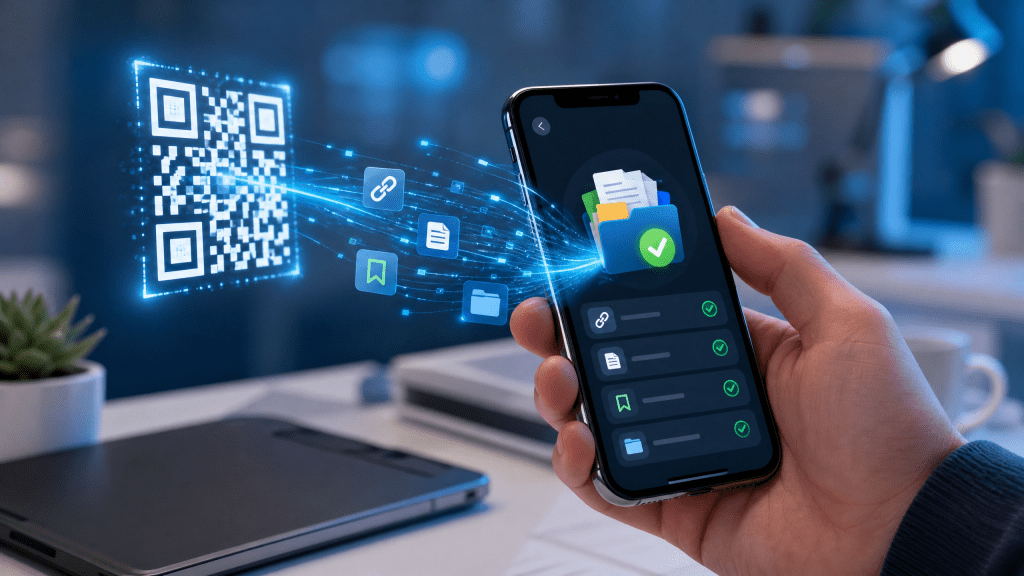
QR codes have become a quick and convenient way to access information—from websites and contact details to event tickets and Wi-Fi credentials. But what happens after you scan a QR code? If you don’t save the data properly, you might lose access to important information.
In this guide, we’ll explore how to save QR link data efficiently using an iPhone QR workflow, along with practical tips to keep everything organized and accessible.
Method 1: Save QR Links Using Safari
When you scan a QR code that opens a website, Safari usually handles the link.
Steps:
- Scan the QR code using your iPhone camera
- Tap the notification banner
- Open the link in Safari
- Tap the “Share” icon
- Select “Add Bookmark” or “Add to Reading List”
This is the simplest way to save QR link content for later use.
Method 2: Save QR Data in Notes
For better organization, you can store QR-related information in the Notes app.
Steps:
- Copy the link after scanning
- Open Notes
- Paste the link and add context (e.g., “Event ticket” or “Menu”)
This method is useful if you want to keep multiple QR links in one place.
Why Saving QR Code Data Matters
Most people scan a QR code, view the content, and move on. But in many cases, you may need that information later.
Common scenarios:
- Saving a website for future reference
- Keeping digital tickets or event info
- Storing contact details
- Bookmarking menus or product pages
Without saving the data, you risk losing access—especially if the QR code isn’t available again.
Method 3: Use a Dedicated iPhone QR App
If you frequently scan QR codes, using a dedicated iPhone QR app can make things much easier.
Benefits:
- Automatic scan history
- Easy access to previously scanned links
- Option to label and organize entries
A reliable tool like scan QR codes easily can help you manage your QR activity more efficiently.
I remember switching to a dedicated app after losing an important QR link. To be honest, I was a bit skeptical at first… but it quickly became one of the most useful tools on my phone.
Method 4: Save QR Codes as Images
Sometimes, you may want to keep the QR code itself instead of just the link.
How to do it:
- Take a screenshot of the QR code
- Save it in your Photos app
- Organize it into albums if needed
This is especially helpful for tickets, passes, or offline use.
Method 5: Enable Offline Access
Not all QR code content requires an internet connection. In some cases, you can prepare for offline access.
For example, you can follow this guide on how to scan QR codes offline step by step to ensure you can still retrieve information even without connectivity.
Organizing Saved QR Links
Saving links is only half the job—keeping them organized is just as important.
Tips:
- Use folders in Notes or bookmarks
- Add clear labels and descriptions
- Delete outdated or unused links
- Group related QR codes together
A little organization goes a long way in improving usability.
Common Mistakes to Avoid
Not Saving Immediately
If you don’t save the link right after scanning, you may forget or lose it.
Relying Only on Browser History
History can get cluttered and isn’t always reliable.
Ignoring Security
Avoid saving suspicious or unverified links.
Advanced Tips
Once you’re comfortable with the basics, you can improve your workflow further.
Use Cloud Sync
Enable iCloud for Notes and Safari bookmarks so your QR data is available across devices.
Combine with Reminders
Add important QR links to Reminders for time-sensitive tasks.
Use Tags in Notes
Tags make it easier to search and organize saved content.
Real-Life Use Cases
Saving QR links is useful in many everyday situations:
- Travel: Boarding passes, hotel info
- Dining: Menus and payment links
- Work: Meeting documents and shared resources
- Shopping: Product pages and discounts
Having quick access to these links saves time and reduces stress.
Final Thoughts
Learning how to save QR code links and data on your iPhone can significantly improve your daily workflow. Whether you use Safari bookmarks, Notes, or a dedicated app, the key is to act quickly and stay organized.
QR codes are designed for convenience—but that convenience only lasts if you manage the information properly. With the right approach, you can turn every scanned QR code into a useful, retrievable resource.
Download a Helpful QR App
If you want a smoother experience managing and saving QR codes, consider trying a dedicated app:
It’s a simple way to keep all your scanned QR links and data in one place.


Leave a comment