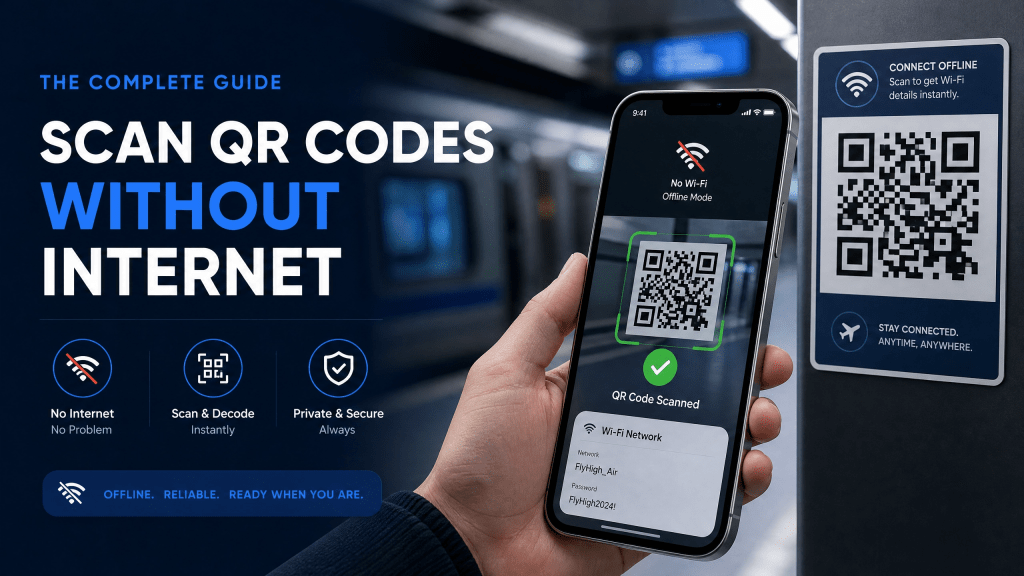
QR codes are everywhere today. People use them to open websites, access tickets, connect to Wi-Fi, share files, download apps, and store contact information. Most users assume QR scanning always requires an internet connection, but that is not entirely true. In many situations, iPhones can scan and read QR codes even when offline.
Understanding how offline QR scanning works can be extremely useful during travel, weak signal conditions, flights, underground transportation, or crowded events where internet connections become unreliable. Whether you are scanning event passes, saved QR screenshots, or locally stored information, iPhones can still recognize many QR codes without needing mobile data or Wi-Fi.
This guide explains how offline QR scanning works on iPhone devices, which types of QR codes function without internet, and how to improve scanning reliability.
Types of QR Codes That Work Offline
Several QR code formats do not require internet access after scanning.
Contact Information
vCard QR codes containing names, phone numbers, and email addresses can be read offline.
Wi-Fi Credentials
Wi-Fi setup QR codes can still display connection details offline.
Plain Text QR Codes
Simple notes, codes, or messages stored directly inside the QR code work without internet.
Event Passes
Some locally stored ticket systems allow offline verification.
Authentication Codes
Certain login or verification systems support offline scanning temporarily.
How to Scan QR Codes Offline on iPhone
Modern iPhones already include built-in QR recognition.
Step 1: Open the Camera App
Launch the default Camera app.
Step 2: Point at the QR Code
Hold the camera steadily over the QR image.
Step 3: Wait for Recognition
The iPhone automatically detects the QR pattern.
Step 4: View the Content
If the QR contains offline-readable data, the information appears immediately even without internet access.
This process works because QR decoding happens directly on the device itself.
Scanning QR Codes From Saved Screenshots
Offline QR scanning becomes even more useful when dealing with saved images.
For example, users may save:
- Boarding passes
- Event tickets
- Contact cards
- Payment confirmations
to their Photos app before losing internet access.
Many tools now support offline QR scan functionality directly from screenshots and stored images.
This is especially useful while:
- Traveling internationally
- Flying
- Entering stadiums
- Using subway systems
- Attending conferences
Can QR Codes Work Without Internet?
Yes, many QR codes can be scanned offline.
The important thing to understand is that QR scanning and QR content access are two separate processes.
Scanning the QR Code
The iPhone camera can recognize and decode the QR image itself without internet access.
Opening Online Content
If the QR code contains:
- Website URLs
- Cloud files
- Online forms
- App Store pages
then internet access becomes necessary after scanning.
However, QR codes containing local or embedded information can still work fully offline.
Why Offline QR Scanning Matters
Offline access improves reliability in situations where mobile service becomes weak or unavailable.
Airports
Travelers often experience roaming issues or unstable signals.
Concerts and Stadiums
Large crowds overload networks quickly.
Underground Transportation
Subways and tunnels commonly lose reception.
Rural Areas
Some regions have limited cellular coverage.
International Travel
Roaming charges and SIM limitations may restrict internet access.
Offline QR support helps users continue accessing important information regardless of connectivity.
Best QR Scanner Features for Offline Use
Not all QR scanners perform equally well offline.
A good iPhone QR scanner should support:
- Screenshot scanning
- Fast autofocus
- Offline recognition
- QR history storage
- Low-light scanning
In my experience, a simple and fast QR scanner is way better than one with too many features.
Many overloaded apps become slower and less reliable during offline use.
Common Offline QR Scanning Problems
Although offline scanning works well in many cases, users may still encounter issues.
The QR Code Opens a Website
If the QR contains a URL, internet access becomes necessary after scanning.
Blurry Screenshots
Low-quality saved images may reduce recognition speed.
Damaged QR Codes
Scratches, folds, or cracks interrupt pattern detection.
Low Lighting
Poor lighting affects autofocus and image clarity.
Disabled QR Recognition
Some users accidentally disable QR scanning in Camera settings.
Tips for Better Offline QR Scanning
Save Important QR Codes Before Traveling
Store screenshots locally in advance.
Increase Screen Brightness
Bright displays improve camera recognition.
Keep Images High Resolution
Avoid compressed screenshots whenever possible.
Clean the Camera Lens
Dust and fingerprints reduce scanning accuracy.
Test Important Codes Ahead of Time
Verify tickets or passes before reaching low-signal areas.
Can iPhone Scan QR Codes in Airplane Mode?
Yes.
The camera can still detect and decode QR images in airplane mode.
However:
- Website links will not load
- Online files will not open
- Cloud content remains inaccessible
But offline-compatible QR content still works normally.
Offline QR Codes for Businesses
Businesses increasingly use QR systems that support partial offline functionality.
Examples include:
- Museum guides
- Offline menus
- Local event schedules
- Boarding passes
- Product manuals
- Internal employee access
Offline-compatible QR systems improve reliability for customers and staff alike.
Security Considerations
Offline scanning is generally safer than online scanning because:
- No external website loads automatically
- Fewer phishing risks
- Reduced tracking concerns
However, users should still verify unfamiliar QR content before saving or opening files later online.
The Future of Offline QR Technology
As mobile devices improve, offline QR functionality continues expanding.
New technologies include:
- AI image enhancement
- Better screenshot recognition
- Offline ticket verification
- Dynamic cached QR systems
- Enhanced low-light scanning
These improvements make QR systems more dependable across different environments.
Final Thoughts
Scanning QR codes without internet on iPhone is easier than many users realize. While some QR codes still require online access to load websites or files, many common QR formats work perfectly offline.
By saving important QR codes ahead of time and using reliable scanning tools, users can avoid problems caused by weak signals or unavailable networks.
For travelers, event attendees, and everyday smartphone users, understanding offline QR scanning provides added convenience and reliability in real-world situations.
If you frequently scan QR codes, using a lightweight and responsive scanner app can make the experience even smoother and faster.
Download the iPhone QR Scanner App here: QR Scanner for iPhone


Leave a comment