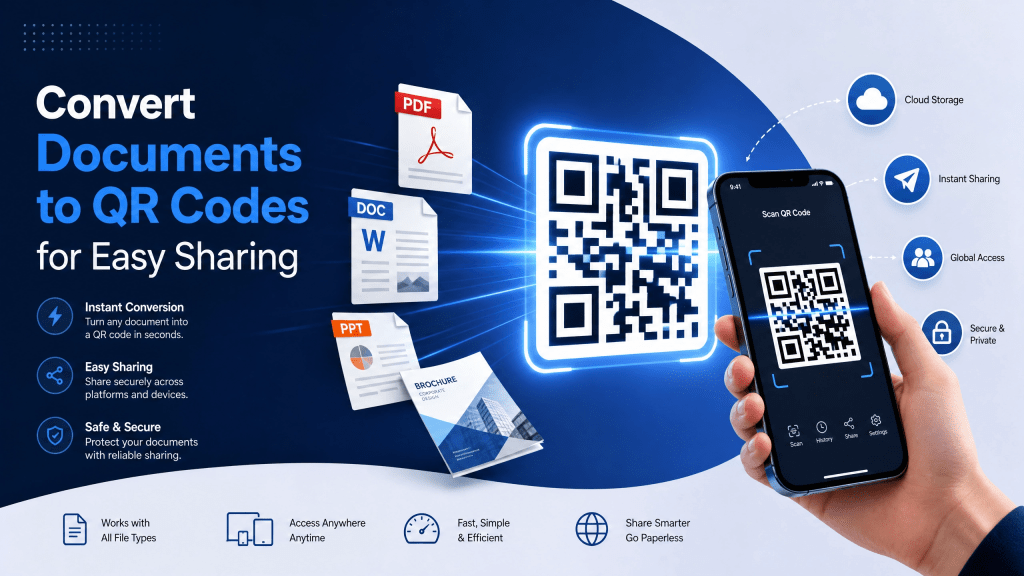
Sharing documents has become much easier in recent years thanks to QR code technology. Instead of attaching large files to emails or sending long cloud-storage links manually, users can now convert documents into QR codes and allow instant access with a simple smartphone scan.
Whether you want to share PDFs, Word files, presentations, contracts, menus, brochures, or study materials, QR codes provide a fast and convenient solution. For iPhone users especially, scanning QR-linked documents is now extremely simple because iOS devices include built-in QR recognition directly through the Camera app.
This guide explains how document-to-QR conversion works, why businesses and individuals use it, and how iPhone users can scan shared documents quickly and securely.
Benefits of Converting Documents into QR Codes
Faster Access
Users avoid typing long URLs manually.
Mobile-Friendly Sharing
Smartphones can open files instantly after scanning.
Contactless Distribution
Perfect for events, classrooms, and public spaces.
Cleaner Presentation
QR codes look more professional than visible long links.
Easy Printing
QR codes can be added to:
- Posters
- Flyers
- Business cards
- Packaging
- Menus
How to Convert Documents into QR Codes
The process is straightforward and requires only a few steps.
Step 1: Upload the Document
First upload the file to:
- Google Drive
- Dropbox
- iCloud
- OneDrive
- Website hosting
Make sure sharing permissions are enabled properly.
Step 2: Copy the Shareable Link
After uploading:
- Generate a public or limited-access URL
- Verify the document opens correctly
The QR code will redirect users to this link.
Step 3: Generate the QR Code
Paste the document URL into a QR generator.
The generator creates a scannable QR image that links directly to the file.
Many users exploring document to QR workflows also use QR systems for media sharing, presentations, and app distribution.
Step 4: Test the QR Code
Before sharing publicly:
- Scan the QR code yourself
- Verify the document opens correctly
- Check mobile compatibility
- Confirm sharing permissions work
Testing prevents broken links later.
What Does “Document to QR” Mean?
A QR code itself usually does not contain the full document directly. Instead, it stores:
- A cloud storage link
- A file URL
- A download page
- A shared folder location
When users scan the QR code, the document opens instantly on their device.
This makes file distribution much faster and more mobile-friendly.
Why People Use QR Codes for Documents
Traditional file sharing methods often create problems such as:
- Large email attachments
- Broken links
- Upload limitations
- Slow downloads
- Formatting issues
QR codes simplify the process by giving users immediate access through a quick scan.
Common document-sharing uses include:
- Restaurant menus
- Event brochures
- Business contracts
- Study materials
- Product manuals
- Presentation slides
- Conference schedules
Types of Documents Commonly Shared with QR Codes
PDF Files
One of the most popular formats because PDFs preserve layout and formatting.
Word Documents
Useful for editable templates and forms.
Excel Spreadsheets
Often used for schedules or reports.
PowerPoint Presentations
Convenient for conferences and classrooms.
Image-Based Documents
Menus, brochures, and catalogs are commonly shared through QR systems.
How to Scan Document QR Codes on iPhone
Modern iPhones already support QR scanning natively.
Using the Camera App:
- Open Camera
- Point toward the QR code
- Wait for the popup notification
- Tap the link
The document opens automatically in Safari or the related app.
Scan QR Codes from Emails and Screenshots
iPhones can also scan QR codes directly from:
- Photos
- Screenshots
- Message attachments
- Emails
This is extremely useful for digital document sharing workflows.
Helpful guides explaining advanced iPhone QR scanner usage can improve scanning reliability and speed even further.
Why Dedicated QR Apps Can Improve Scanning
Although Apple’s built-in scanner works well, dedicated QR apps often provide:
- Faster recognition
- Screenshot scanning
- Better damaged-code support
- Offline scanning
- QR history storage
Lightweight QR scanner apps are especially useful for users who work with QR documents regularly.
Thank goodness I chose this one back then; otherwise, I would have been in a real bind.
Some overloaded QR apps become slower because they focus too much on ads and unnecessary features instead of fast scanning.
Best Practices for Document QR Sharing
Use High-Quality QR Images
Blurry QR codes reduce scan speed.
Keep Links Active
Deleted cloud files break QR functionality.
Avoid Tiny QR Sizes
Larger QR codes scan more reliably.
Protect Sensitive Files
Use password protection or restricted permissions when necessary.
Test Across Multiple Devices
Ensure compatibility with different smartphones.
Security Considerations
Before opening QR-linked documents:
- Verify the source
- Check destination URLs
- Avoid suspicious downloads
- Use trusted cloud providers
Businesses should also:
- Keep document permissions updated
- Avoid exposing confidential files publicly
Common QR Document Sharing Problems
Expired Links
Temporary sharing permissions may stop working later.
Compressed QR Images
Low-quality messaging apps may reduce scan reliability.
File Access Restrictions
Incorrect permissions prevent users from opening documents.
Slow Internet Connections
Large PDFs or presentations may load slowly on mobile networks.
Why Businesses Love QR Document Sharing
Companies increasingly use QR document systems for:
- Product instructions
- Training materials
- Digital brochures
- Customer onboarding
- Restaurant menus
- Medical forms
- Real estate listings
QR technology bridges physical and digital communication seamlessly.
Future of QR-Based Document Sharing
QR systems continue evolving rapidly with:
- Dynamic QR updates
- AI-enhanced scanning
- Advanced analytics
- Better security controls
- Offline file caching
As mobile-first communication continues growing, QR document workflows will likely become even more common.
Final Thoughts
Converting documents into QR codes is one of the easiest ways to simplify file sharing in 2026. Whether you are distributing PDFs, presentations, menus, or business files, QR technology allows users to access documents instantly with a simple scan.
For iPhone users, the built-in Camera app already provides convenient QR support, while dedicated scanner apps may offer even faster performance and advanced features.
As businesses and individuals continue moving toward mobile-first workflows, QR-based document sharing will remain one of the fastest and most practical digital sharing methods available.
Recommended QR Scanner App for iPhone
Try this lightweight QR scanner app for fast document access and screenshot scanning:
👉 Download QR Scanner for iPhone


Leave a comment