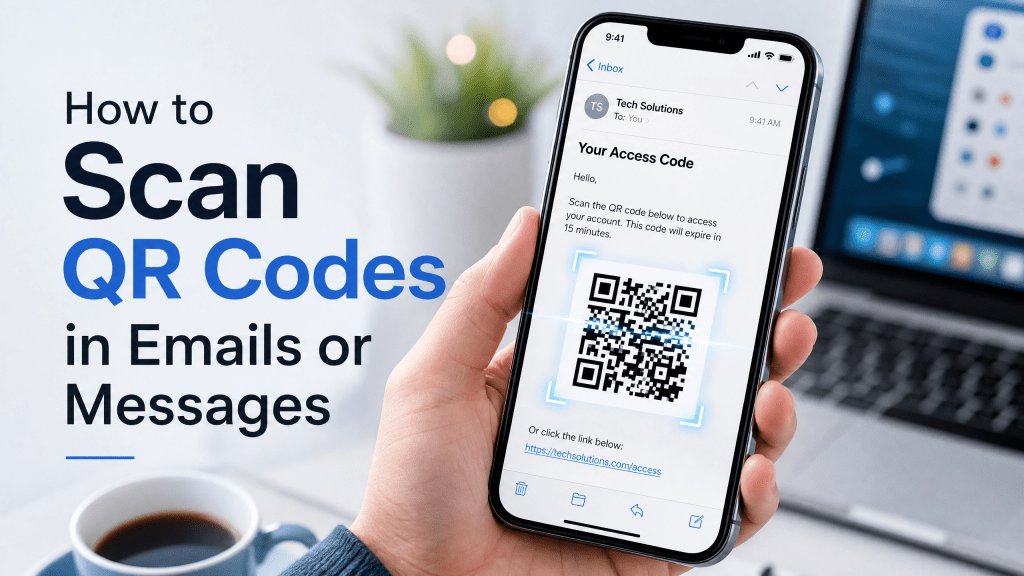
QR codes are no longer limited to posters, restaurant menus, or product packaging. Today, many people receive QR codes directly through emails, text messages, WhatsApp chats, social media apps, and business communication platforms. Airlines send boarding passes as QR images, event organizers distribute ticket codes by email, and businesses often share app download links through messaging apps.
For iPhone users, scanning QR codes from emails or messages is easier than ever. Modern iOS versions can recognize QR codes directly from screenshots, saved images, and message attachments without needing another phone or device.
This guide explains how to scan QR codes from emails or messages on iPhone, common problems users face, and the best ways to improve scanning speed and reliability.
Can iPhone Scan QR Codes from Messages?
Yes. Modern iPhones can recognize QR codes directly from:
- Photos
- Screenshots
- Saved images
- Message attachments
This means you do not need a second phone to scan a QR code sent to you.
Apple’s built-in image recognition system makes this process extremely convenient.
Method 1: Scan QR Codes from Screenshots
One of the easiest methods is taking a screenshot of the QR code.
Step-by-Step:
- Open the email or message
- Take a screenshot of the QR code
- Open the screenshot in Photos
- Tap and hold the QR code
- Open the detected link
This method works well for:
- Event tickets
- Payment QR codes
- App download links
- Contact sharing
Method 2: Scan Directly from Photos App
If someone sends the QR image as an attachment:
- Save the image to Photos
- Open the image
- Tap the QR code area
- Select the popup action
Modern iPhones can detect QR codes automatically inside saved images.
Why Some QR Codes Fail to Scan
Even though iPhones scan QR codes very well, certain problems still happen.
Common Causes:
- Blurry screenshots
- Cropped QR images
- Poor lighting
- Low-resolution images
- Damaged QR patterns
- Messaging app compression
Compressed images from social media apps sometimes reduce QR quality significantly.
Why QR Codes Are Common in Emails and Messages
Businesses and individuals increasingly use QR codes because they are:
- Fast
- Contactless
- Mobile-friendly
- Easy to distribute
Instead of typing long URLs manually, users simply scan the QR code and instantly access:
- Websites
- Event tickets
- App downloads
- Wi-Fi credentials
- Contact information
- Payment pages
This makes QR codes ideal for digital communication.
Common Places You Receive QR Codes
Most iPhone users now encounter QR codes inside:
- Email attachments
- SMS messages
- WhatsApp chats
- Telegram conversations
- Facebook Messenger
- Instagram DMs
- Event confirmations
- Airline tickets
- Promotional newsletters
Since QR images are often received digitally, users need methods for scanning them directly on the same device.
Tips for Faster QR Scanning
Increase Image Brightness
Bright images improve QR recognition speed.
Avoid Cropping Too Closely
Leave some white border space around the QR code.
Use Original Images
Forwarded screenshots often lose image quality.
Hold Steady
Avoid moving the phone too quickly while scanning.
Why Many Users Prefer Dedicated QR Apps
Although Apple’s built-in tools are convenient, dedicated scanner apps often provide:
- Faster QR recognition
- Screenshot scanning
- Better damaged-code support
- Offline scanning
- QR history tracking
Some users prefer lightweight scanners optimized specifically for QR performance.
For example, guides and scanning resources available on Scan QR Reader explain additional ways to improve QR scanning workflows on iPhone devices.
Security Tips for QR Codes in Emails
Not every QR code received by email is safe.
Malicious QR codes may redirect users to:
- Fake login pages
- Scam payment websites
- Phishing portals
- Malware downloads
Before opening a QR link:
- Verify the sender
- Preview the URL carefully
- Avoid suspicious payment requests
- Never enter passwords on unfamiliar websites
Why Lightweight QR Apps Often Work Better
Many QR apps today include:
- Ads
- Browsers
- Social features
- Shopping systems
These extra tools can slow scanning performance.
Thank goodness I chose this one back then; otherwise, I would have been in a real bind.
A lightweight iPhone QR scanner usually performs better because it focuses mainly on fast QR recognition instead of unnecessary features.
Common Uses for Email QR Codes
Event Tickets
Concerts and conferences often deliver tickets as QR attachments.
Airline Boarding Passes
Airlines frequently use QR systems for digital check-in.
App Install Promotions
Businesses distribute app download links using QR graphics.
Contact Sharing
Professionals exchange digital business cards via QR codes.
Marketing Campaigns
Promotional emails increasingly include QR links for mobile access.
Offline QR Scanning
Some QR scanner apps can even decode QR images without internet access.
Offline scanning works especially well for:
- Text-based QR codes
- Contact information
- Wi-Fi credentials
- Saved screenshots
This is useful during travel or poor network conditions.
Why QR Technology Keeps Growing
QR codes continue becoming more popular because they are:
- Fast
- Contactless
- Low-cost
- Easy to generate
- Universal across smartphones
Industries using QR technology heavily include:
- Restaurants
- Transportation
- Events
- Retail
- Payments
- Healthcare
- Education
As mobile communication grows, QR usage inside emails and messaging apps will continue increasing.
Future of QR Scanning on iPhone
Apple continues improving QR recognition with:
- Better image detection
- AI-enhanced scanning
- Faster screenshot recognition
- Improved low-light performance
- Enhanced security previews
Future iPhone cameras will likely make QR scanning even more seamless.
Final Thoughts
Scanning QR codes from emails or messages on iPhone is now extremely easy thanks to Apple’s built-in image recognition tools. Whether the QR arrives through email, text, WhatsApp, or social media, users can scan it directly from screenshots or saved images without needing another device.
For users who scan QR codes regularly, dedicated QR apps may provide faster recognition, better low-light performance, and improved screenshot scanning support.
As QR communication continues expanding across tickets, marketing, payments, and app downloads, understanding how to scan QR codes from messages becomes increasingly useful for everyday iPhone users.
Recommended iPhone QR Scanner App
Try this lightweight QR scanner app for faster scanning and screenshot support:
👉 Download QR Scanner for iPhone


Leave a comment